
Key Takeaways
- Google Search Console is Google’s free tool for checking how your site performs in Google Search, finding indexing problems and fixing them.
- Use a Domain property if you can. It covers all subdomains and protocols, and it is verified with a DNS record.
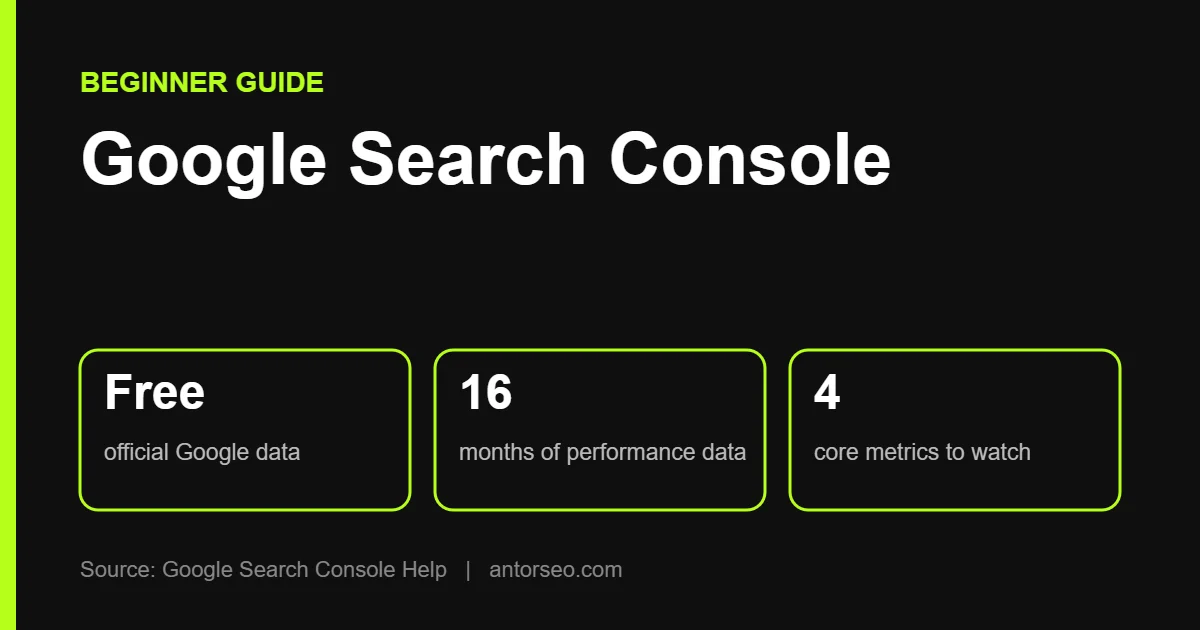
- The Performance report shows clicks, impressions, CTR and average position for up to 16 months.
- Use URL Inspection to check single pages and the Page indexing report to see which pages are and are not indexed.
- Newer reports include Generative AI performance for AI Overviews and AI Mode, and Insights for a quick overview.
Google Search Console is the most important free SEO tool you can use. It is the only place where Google itself tells you which searches show your site, which pages are indexed, and what problems it found.
This beginner’s guide covers how to set it up, which reports matter most, and simple weekly routines that help you get value from it without getting lost in the data.
What Is Google Search Console?
Google describes Search Console as a free service that helps you monitor and troubleshoot your site’s presence in Google Search. You do not need it to appear in Google, but without it you are guessing.
With Search Console you can:
- See which search queries bring people to your site.
- Check whether Google can find, crawl and index your pages.
- Ask Google to index new or updated pages.
- Get alerts for indexing, spam and security problems.
- See which sites link to yours.
How to Set Up Search Console
Step 1: Choose a Property Type
Google offers two property types:
| Property type | What it covers | How to verify |
|---|---|---|
| Domain (example.com) | All subdomains, http and https, all paths | DNS record only |
| URL prefix (https://example.com/) | Only URLs that start with that exact address | Several methods, such as an HTML file, meta tag or Google Analytics |
A Domain property is the better choice for most sites, because it shows everything in one place. Use a URL prefix property if you cannot edit your DNS records.
Step 2: Verify Ownership
For a Domain property, Search Console gives you a TXT record. Add it in your domain registrar or DNS host, then click Verify. DNS changes can take time to update.
Step 3: Submit Your Sitemap
Go to the Sitemaps report and enter your sitemap URL, for example sitemap_index.xml if you use Rank Math or Yoast on WordPress. This helps Google find your pages faster.
Step 4: Wait for Data
Google says data should begin to appear within a few days. Data collection starts once the property is added, even before verification is finished.
The Reports That Matter Most
Performance Report
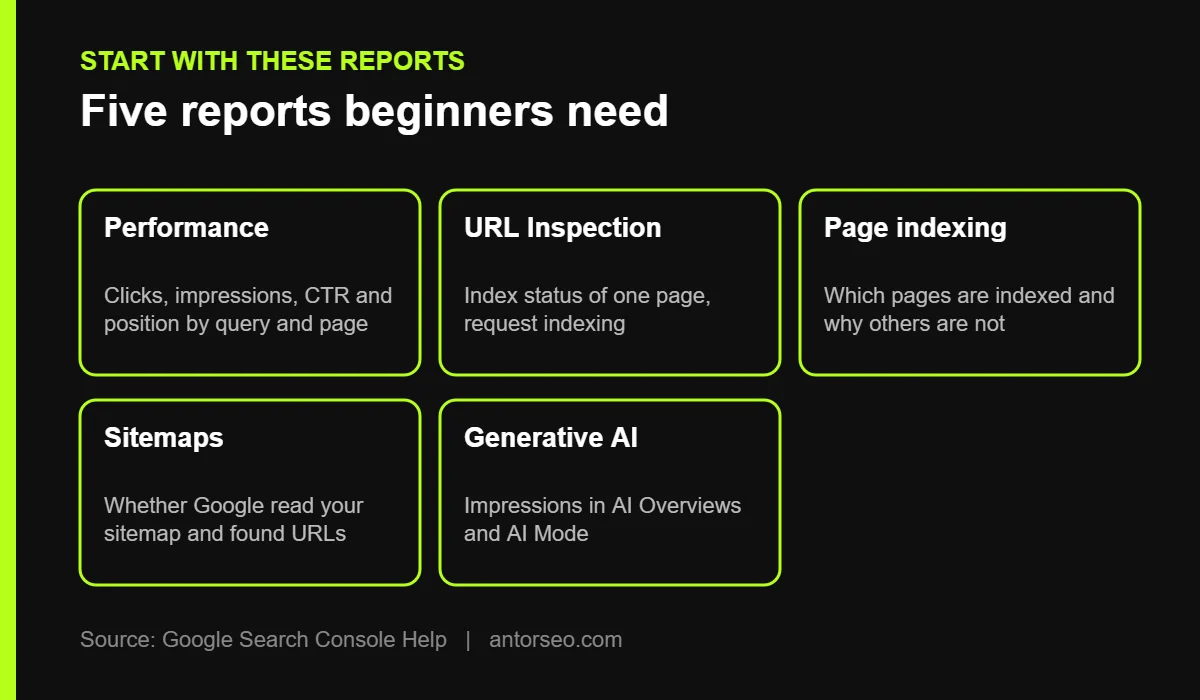
This is where you will spend most of your time. The Performance report shows four metrics:
- Clicks: how many times people clicked your site in Google Search.
- Impressions: how many times your site appeared in results.
- CTR: clicks divided by impressions.
- Average position: the average position of your top result.
You can group data by queries, pages, countries, devices, search appearance and dates. The default view shows the last three months, and you can select up to the last 16 months to compare with the same period last year. The newest data can be preliminary and shown as a dotted line.
URL Inspection Tool
Paste any URL from your site into the search bar at the top. Search Console shows whether the page is indexed, when Google last crawled it, which canonical Google chose, and any problems. After you publish or update an important page, use Request Indexing here.
Page Indexing Report
This report shows how many of your pages are indexed and lists reasons why others are not, such as “Crawled, currently not indexed,” “Duplicate without user-selected canonical” or “Blocked by robots.txt.” Not every non-indexed page is a problem. Redirects and intentionally blocked pages belong there. Focus on important pages that should be indexed but are not.
Sitemaps Report
Check that your sitemap was read successfully and how many URLs Google found in it. Errors here often explain why new pages are slow to appear.
Generative AI Performance Report
Added in June 2026, this report shows impressions for your pages in AI Overviews and AI Mode. It shows impressions only. Clicks from AI features are counted in the main Performance report. See our guide to Google AI Mode SEO for how to use it.
Other Useful Reports
| Report | What it tells you |
|---|---|
| Insights | A simple overview of top and trending content, queries and traffic sources |
| Core Web Vitals | Which pages have slow loading or layout problems on mobile and desktop |
| Links | Your top linked pages, top linking sites and internal links |
| Manual actions | Whether Google has applied a penalty for spam |
| Security issues | Whether your site has been hacked or flagged for harmful content |
| Crawl stats (in Settings) | How Googlebot crawls your site, response times and host problems |
For crawling, see our crawl budget guide. For page speed, see our Core Web Vitals guide.
5 Ways to Use Search Console Every Week
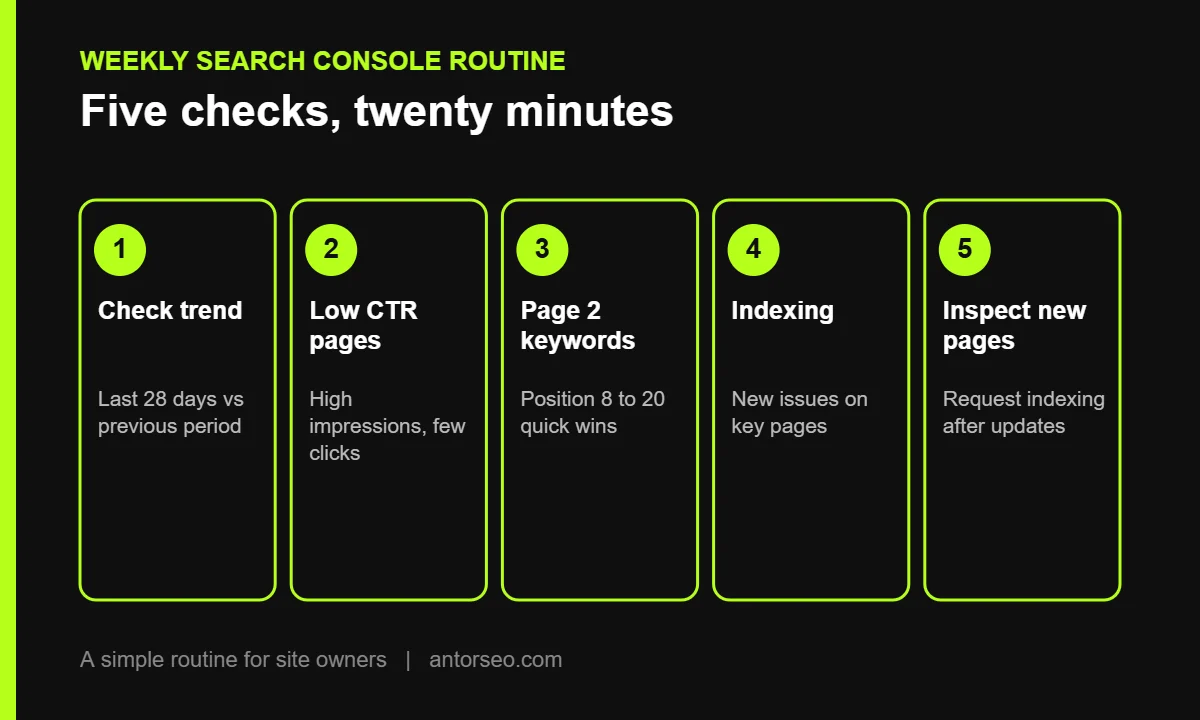
- Check the trend. Compare the last 28 days with the previous period. A sudden drop needs investigation.
- Find low CTR pages. Sort pages by impressions and look for low CTR. Improving the title and meta description can bring more clicks without better rankings.
- Find page 2 keywords. Filter queries with an average position between 8 and 20. These are often the quickest wins with better content and internal links.
- Check indexing. Look at the Page indexing report for new issues affecting important pages.
- Inspect new pages. Run URL Inspection on every new or updated important page and request indexing.
Common Beginner Mistakes
- Reading average position as a single ranking. It is an average across many queries and searches, so it moves even when nothing changes on your page.
- Panicking over every non-indexed page. Many are fine to leave out of the index.
- Ignoring data notes. Google publishes known data issues on its data anomalies page. For example, Google reported a logging error that undercounted impressions from May 2025 until April 2026, and FAQ rich results stopped appearing in May 2026. Check this page before you explain a sudden change.
- Only using one property. If you have both a Domain and URL prefix property, use the Domain one for the full picture.
Search Console vs Google Analytics
Search Console shows what happens before the click: impressions, queries and positions in Google. Google Analytics shows what happens after: sessions, engagement and conversions. Link the two so you can see Search Console data inside Analytics. Google notes that Search Console keeps data for the last 16 months, so linked reports have the same limit.
Frequently Asked Questions
Is Google Search Console free?
Yes. It is completely free. You only need a Google account and the ability to verify your site.
How long does it take for data to appear?
Google says data should start to appear within a few days of adding the property.
Does Search Console show all my keywords?
It shows many, but not all. Some queries are hidden for privacy, and the totals in tables can differ slightly from the chart.
How far back does Search Console data go?
The Performance report keeps up to 16 months of data. To keep more, export it regularly or use the API.
What is the difference between Search Console and Ahrefs or Semrush?
Search Console shows real Google data for your own site only. Tools like Ahrefs and Semrush estimate data for any site, including competitors. Our Ahrefs vs Semrush comparison explains the paid options.
Want help reading your Search Console data? Our free SEO audit turns it into a clear list of fixes.