
Key Takeaways
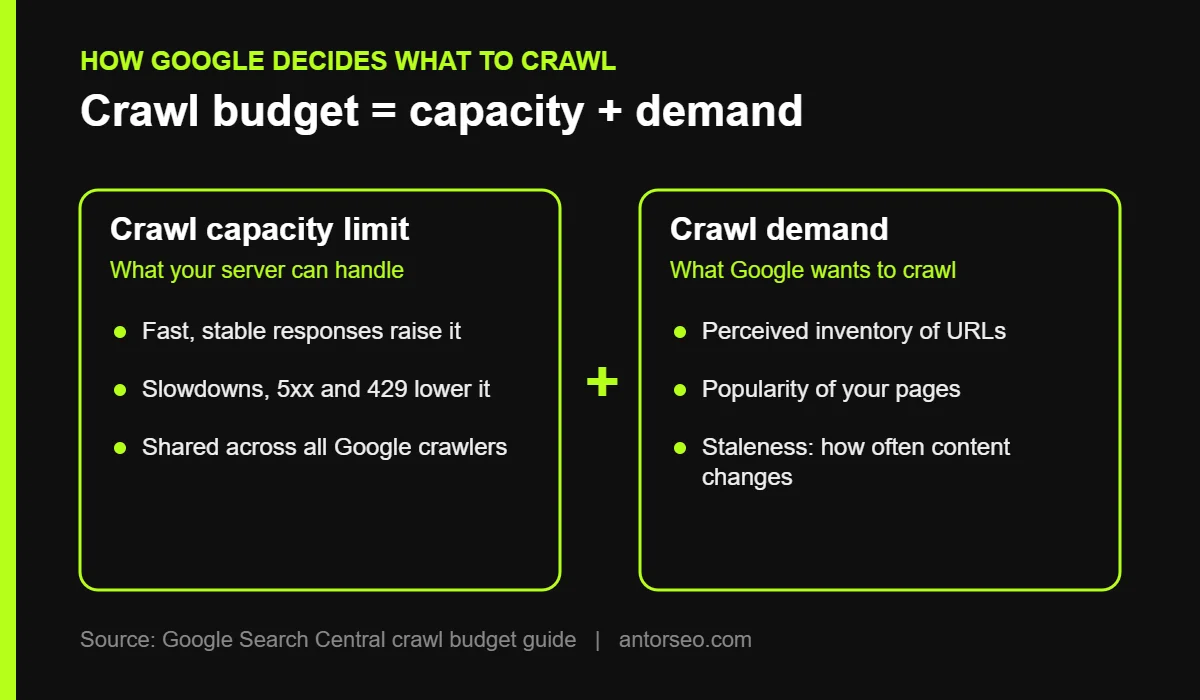
- Crawl budget is the set of URLs Google can and wants to crawl on your site. It combines crawl capacity limit and crawl demand.
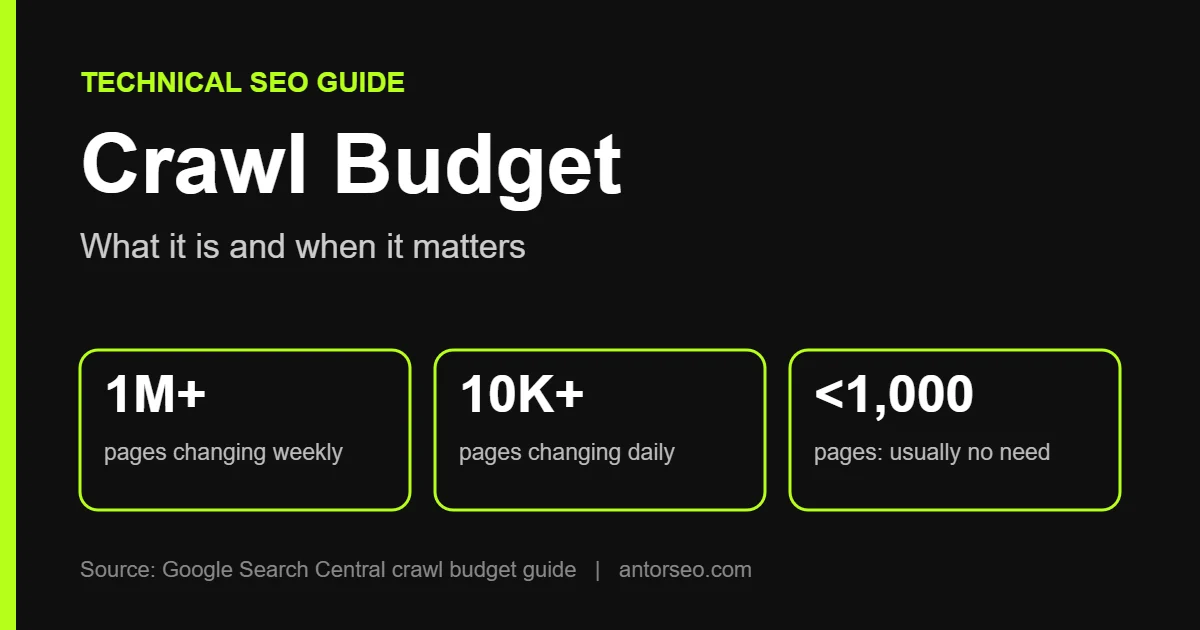
- Google says it mainly matters for sites with 1 million+ pages that change weekly, 10,000+ pages that change daily, or many URLs stuck in “Discovered, currently not indexed.”
- Slow responses, 5xx errors and 429 responses lower how much Google crawls. Fast, stable servers raise it.
- Duplicate URLs, soft 404s, long redirect chains and filter parameters waste crawling. Fix those before anything else.
- Do not use noindex or temporary robots.txt blocks to “save” budget. Google warns against both.
Crawl budget is one of the most talked-about and most misunderstood ideas in technical SEO. Many site owners worry about it when they do not need to, and the sites that do need it often fix the wrong things.
This guide explains what crawl budget is according to Google’s own documentation, how to tell if it matters for your site, what wastes it and how to check it in Search Console.
What Is Crawl Budget?
Google’s crawl budget guide defines it as the set of URLs that Google can and wants to crawl. Googlebot has limited time and resources for every site. Crawl budget decides how many of your URLs it fetches, and how often.
Crawling comes before indexing. If Google does not crawl a page, it cannot index it, rank it or use it as a source in AI features such as Google AI Mode. That is why crawl problems can quietly hold back an entire site.
The Two Parts of Crawl Budget
Crawl Capacity Limit
The crawl capacity limit is how much crawling your server can handle without slowing down. Google watches crawl health. When response times stay stable or improve, the limit goes up. When the server slows down or returns 5xx errors or 429 (too many requests), the limit goes down. Google also notes that this limit is shared across all of its crawlers, not only Googlebot for Search.
Crawl Demand
Crawl demand is how much Google wants to crawl your site. Three things drive it:
- Perceived inventory. The URLs Google knows about. If many of them are duplicates or junk, Google spends time on pages that add nothing.
- Popularity. Pages that are more popular on the web tend to be crawled more often.
- Staleness. Google recrawls content to keep its copy fresh. Pages that change often get revisited more.
Google adds that events such as a site move can raise crawl demand for a while, because many URLs need to be recrawled.
Does Crawl Budget Matter for Your Site?
For most sites, no. Google’s guide is written for advanced cases and gives these rough thresholds:
| Site type | Should you focus on crawl budget? |
|---|---|
| 1 million+ unique pages that change about weekly | Yes |
| 10,000+ unique pages that change daily | Yes |
| Many URLs in “Discovered, currently not indexed” | Yes, check crawling first |
| Small business site, blog or portfolio with a few hundred pages | Usually no. Focus on content, links and indexing basics |
The Search Console Help Center says the same about its Crawl Stats report: if your site has fewer than a thousand pages, you should not need to worry about that level of detail. If a small site has pages that are not indexed, the cause is usually quality, duplication or weak internal links, not crawl budget.
Large ecommerce sites, marketplaces, news publishers and sites with faceted filters are where crawl budget becomes a real issue.
What Wastes Crawl Budget
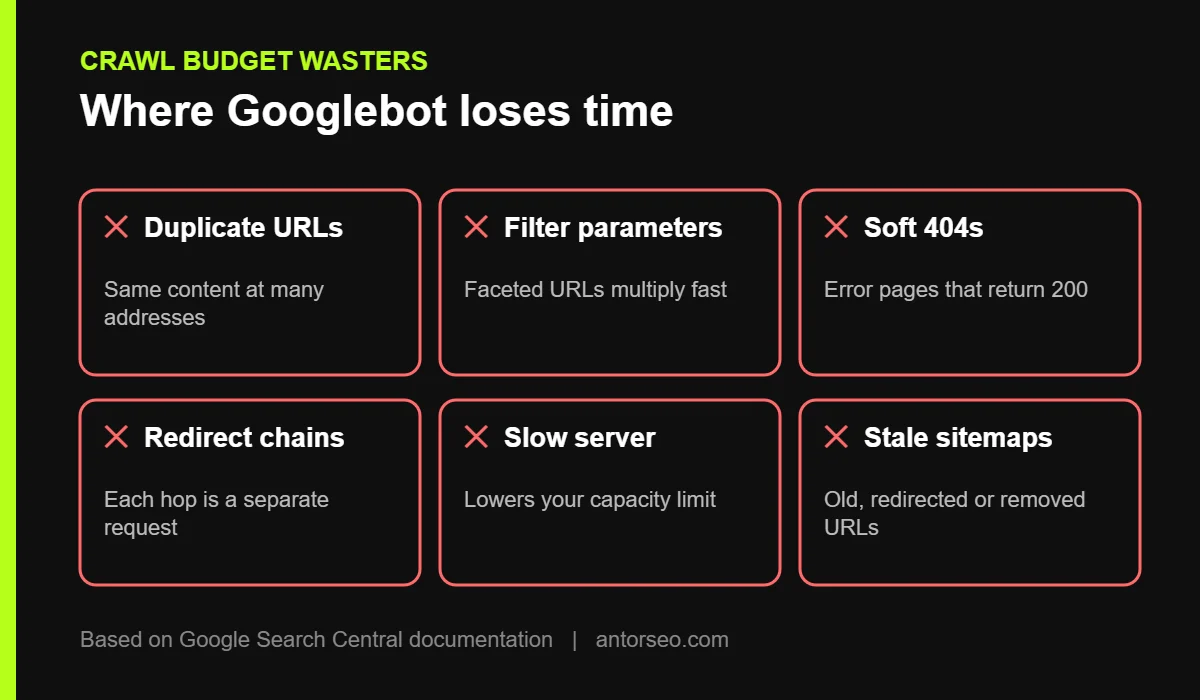
- Duplicate URLs. The same content at several addresses, such as with and without tracking parameters, or print versions.
- Faceted navigation and filters. Color, size and price filters can create millions of URL combinations on a store.
- Soft 404s. Pages that say “not found” but return a 200 status code. Google keeps crawling them as if they were real pages.
- Redirect chains. Page A redirects to B, which redirects to C. In the Crawl Stats report, each step in the chain counts as a separate request.
- Slow server responses. A slow server lowers the crawl capacity limit, so Google fetches fewer pages per visit.
- Outdated sitemaps. Sitemaps full of redirected, deleted or noindexed URLs send Google to pages you do not want crawled.
How to Optimize Crawl Budget
These steps follow the best practices in Google’s guide. Work through them in order, because the first ones usually have the biggest effect.
1. Clean Up Your URL Inventory
Consolidate duplicate content so each piece of content lives at one URL. Use canonical tags and consistent internal links. Block URLs you never want crawled, such as internal search results or endless filter combinations, with robots.txt.
2. Return the Right Status Codes
For pages that are permanently gone, return a 404 or 410. Fix soft 404s so empty or error pages return a real error code. This tells Google to stop spending time on them.
3. Keep Sitemaps Current
Include every page you want crawled and nothing you do not. Use the <lastmod> tag to show when content was actually updated, so Google can prioritize changed pages.
4. Remove Redirect Chains
Point internal links and redirects straight to the final URL. One hop is fine. Three or four hops waste requests and slow discovery.
5. Make Your Server Faster
Reduce server response time with good hosting, caching and a CDN. Google also recommends supporting 304 (Not Modified) responses, so Googlebot does not download pages that have not changed. Faster pages help users too, as we cover in our Core Web Vitals guide.
6. Strengthen Internal Links to Important Pages
Pages buried five clicks deep, or with no internal links at all, are found and recrawled less often. Link to key pages from your navigation, hub pages and related posts. See our internal linking guide for a step-by-step method.
7. Improve Content Quality
Google says crawl demand also depends on the value of your content: popularity, usefulness and uniqueness. Thin, near-duplicate pages lower the overall demand for your site. Removing or merging weak pages often helps important pages get crawled more.
Crawl Budget Mistakes Google Warns Against
- Using noindex to save crawl budget. Google still has to request the page to see the noindex tag, so it does not save crawling. Use noindex to keep pages out of search, not to manage crawling.
- Blocking pages in robots.txt for a while to push budget elsewhere. Google says freed budget is not shifted to other pages unless your site is already at its capacity limit. Only block URLs you never want crawled.
- Returning 503 or 429 for too long. These codes can slow an overloaded crawl in an emergency. Google’s troubleshooting guide warns that returning them for more than two days can cause those URLs to be dropped from the index.
How to Check Crawl Budget in Search Console
The Crawl Stats report shows how Google crawls your site. Open Search Console and go to Settings, then Crawl stats. It is available only for root-level properties, such as a Domain property.
| Metric | What to look for |
|---|---|
| Total crawl requests | Sudden drops or spikes that do not match site changes |
| Average response time | Rising response times, which lower crawl capacity |
| Host status | Problems with robots.txt fetching, DNS or server connectivity |
| Crawl responses | High shares of 404, 301 or 5xx responses |
| Crawl purpose | The balance between discovery of new URLs and refresh of known ones |
Watch the robots.txt line in host status closely. Google’s help page explains that if your robots.txt file returns a 429 or 5xx error, Google stops crawling the site for the first 12 hours while it keeps retrying the file.
Pair the Crawl Stats report with the Page indexing report. If many important URLs sit in “Discovered, currently not indexed,” Google knows about them but has not crawled them yet. That is the clearest sign that crawl budget, or overall site quality, needs attention. For very large sites, server log files give the most complete picture of what Googlebot requests.
Crawl Budget Checklist
- Check the Crawl Stats report for host status issues and response time trends.
- Count URLs in “Discovered, currently not indexed” in the Page indexing report.
- Find duplicate and parameter URLs and consolidate them.
- Block internal search and infinite filter URLs in robots.txt.
- Fix soft 404s and return 404 or 410 for removed pages.
- Flatten redirect chains to one hop.
- Clean your XML sitemap and add accurate lastmod dates.
- Improve server response time and support 304 responses.
- Link to key pages from navigation and hub pages.
For a full list of technical checks beyond crawling, use our technical SEO checklist. If you run on WordPress, our WordPress SEO page covers platform-specific fixes.
Frequently Asked Questions
-
Is crawl budget a ranking factor?
No. Crawl budget affects whether and how quickly Google finds and refreshes your pages. It does not make a page rank higher. A page still needs strong content and links to rank once it is crawled and indexed.
-
Do small websites need to worry about crawl budget?
Usually not. Google says sites with fewer than a thousand pages should not need the Crawl Stats report. Indexing problems on small sites are more often caused by low quality or duplicate content.
-
How can I increase my crawl budget?
Make your server faster and more stable, remove wasted URLs and improve content quality. If URL Inspection shows “Hostload exceeded,” your server is the bottleneck, and more server resources can help.
-
Does noindex save crawl budget?
No. Google must crawl a page to see its noindex tag. To stop crawling, block the URL in robots.txt, and only if you never want it crawled.
-
Where do I see crawl data in Search Console?
Go to Settings and open Crawl stats. The report shows total requests, download size, response time, host status and responses by type for the last 90 days.
Not sure if crawling is holding your site back? Our free SEO audit checks crawl stats, indexing and technical waste in one review.